Guide
Drop, reflection and natural shadows for product photos
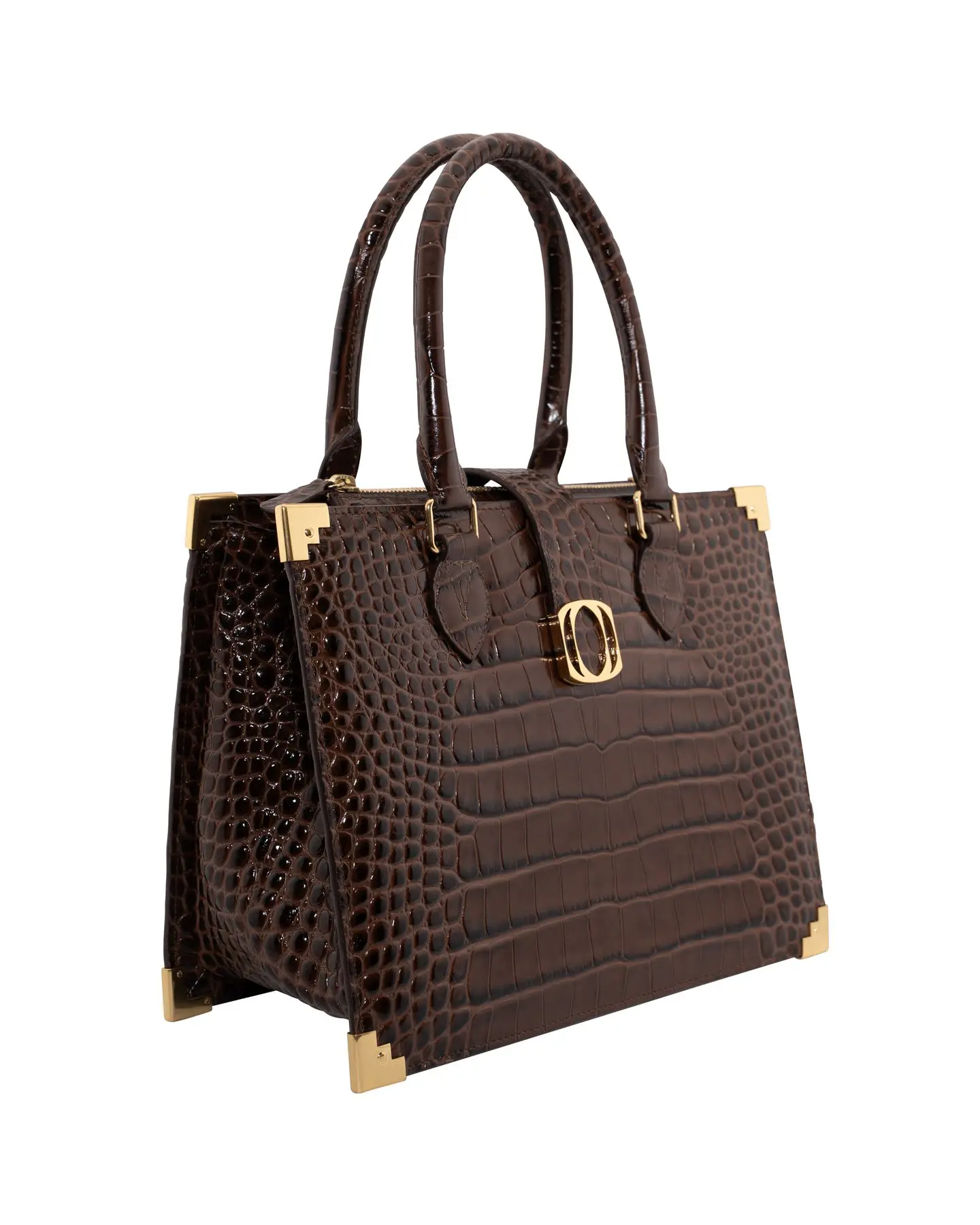
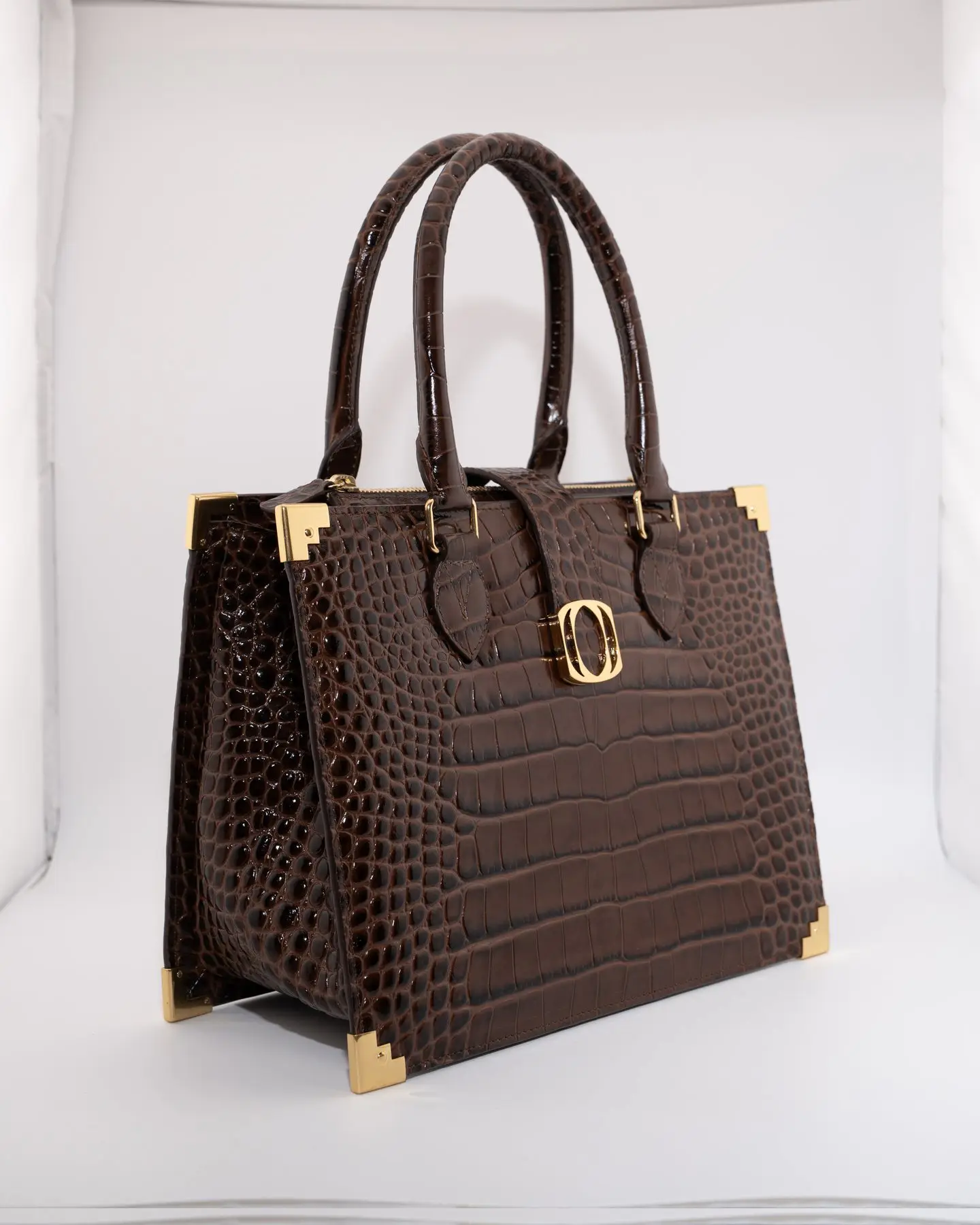
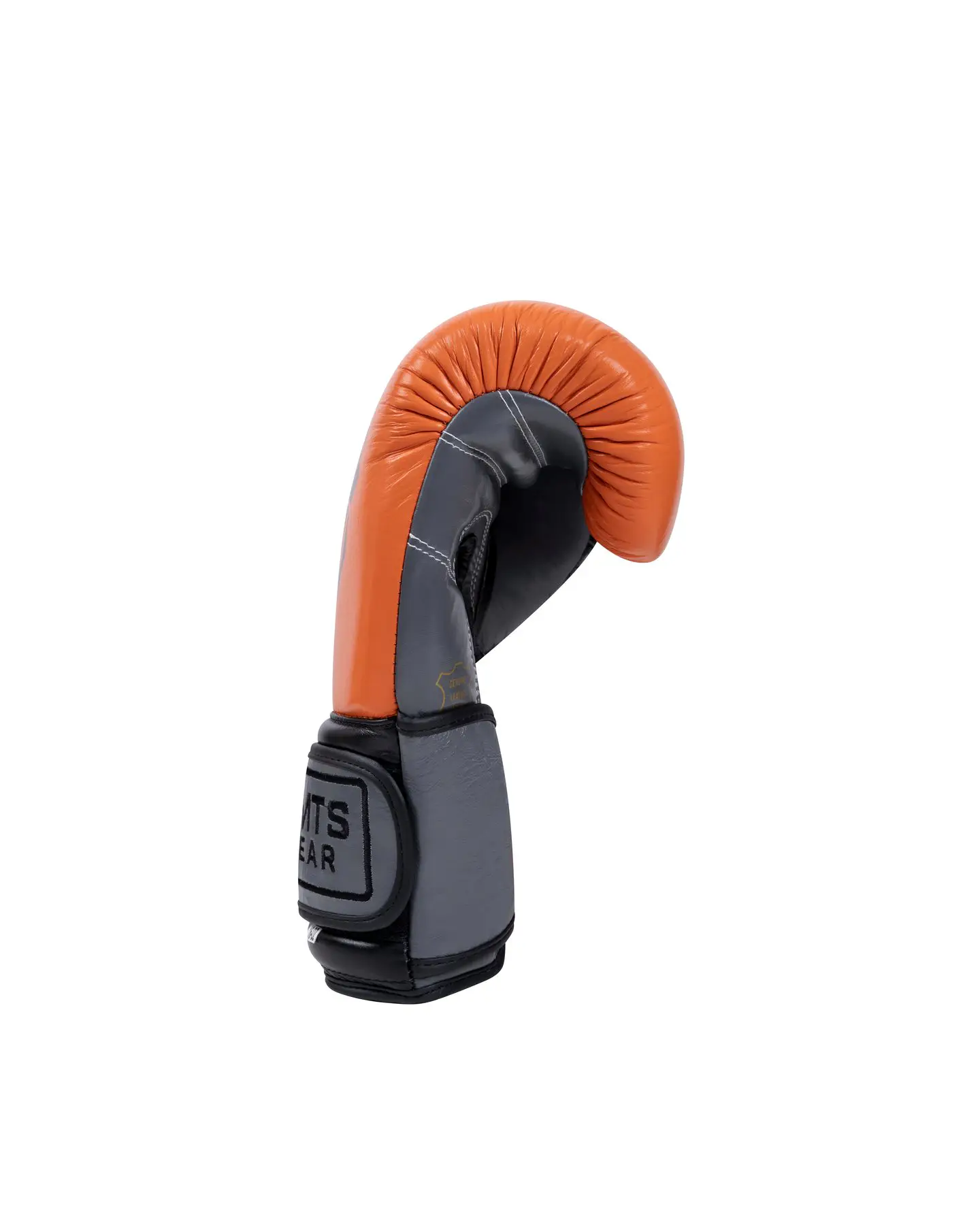
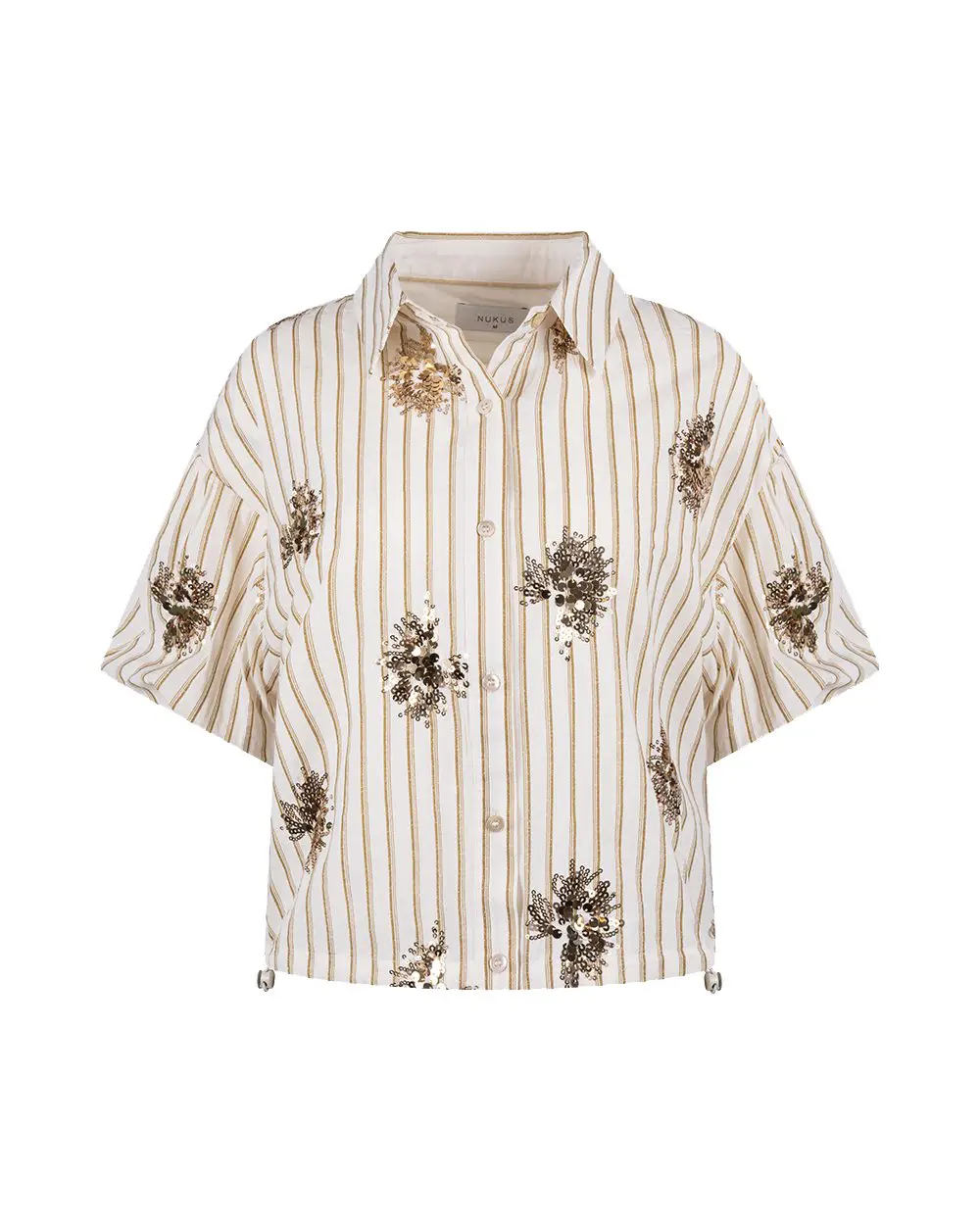
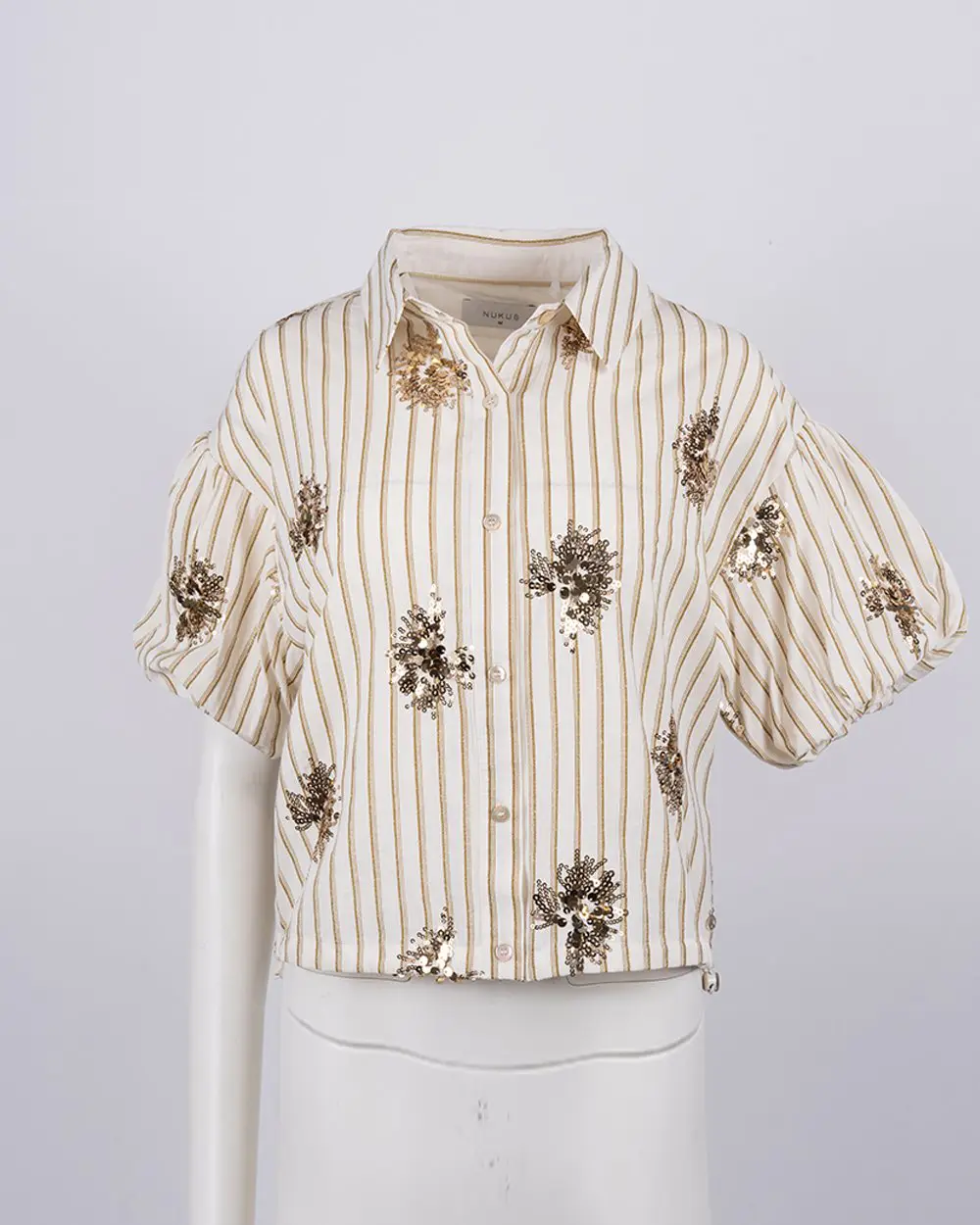
A drop shadow is a soft shadow offset behind the product, a reflection shadow mirrors the product on a glossy surface, and a natural shadow follows the outline of the product and the direction of the light in the photo. Each one tells viewers that the product stands on a surface, which keeps a cut-out from looking as if it floats. The right choice depends on the product and on the page where it will appear.
Why a cut-out needs a shadow
Once the background is removed, nothing sits under the product and it looks as if it is floating. A shadow shows which way the light falls and where the product touches the surface.
Drop shadow
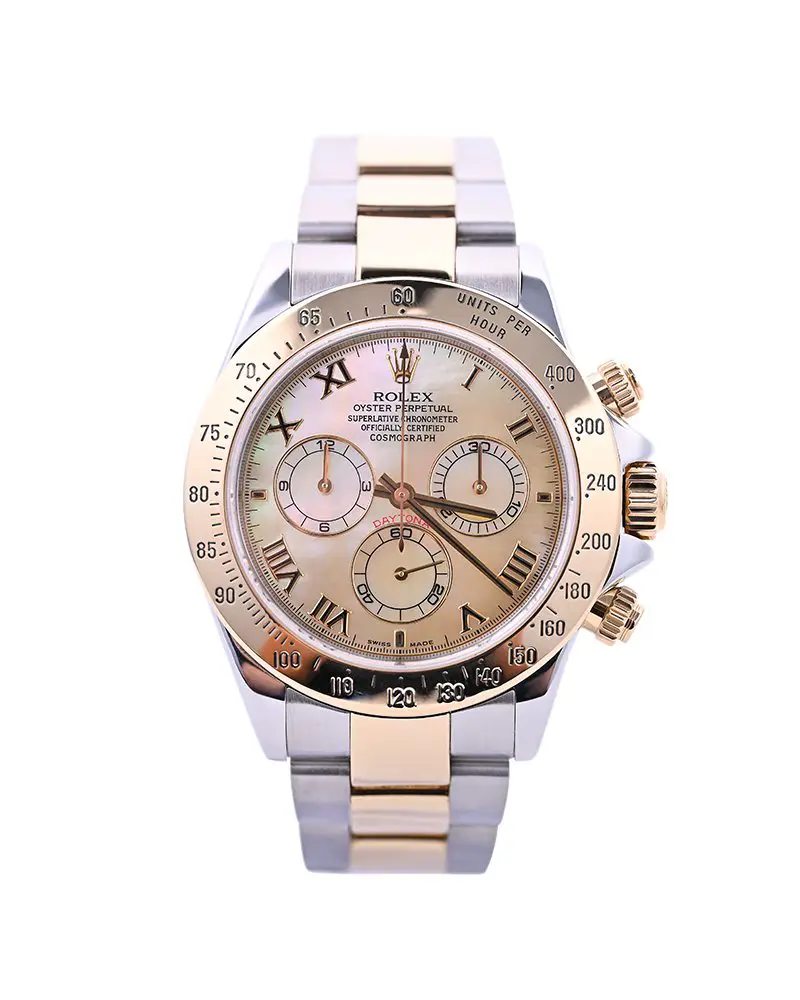
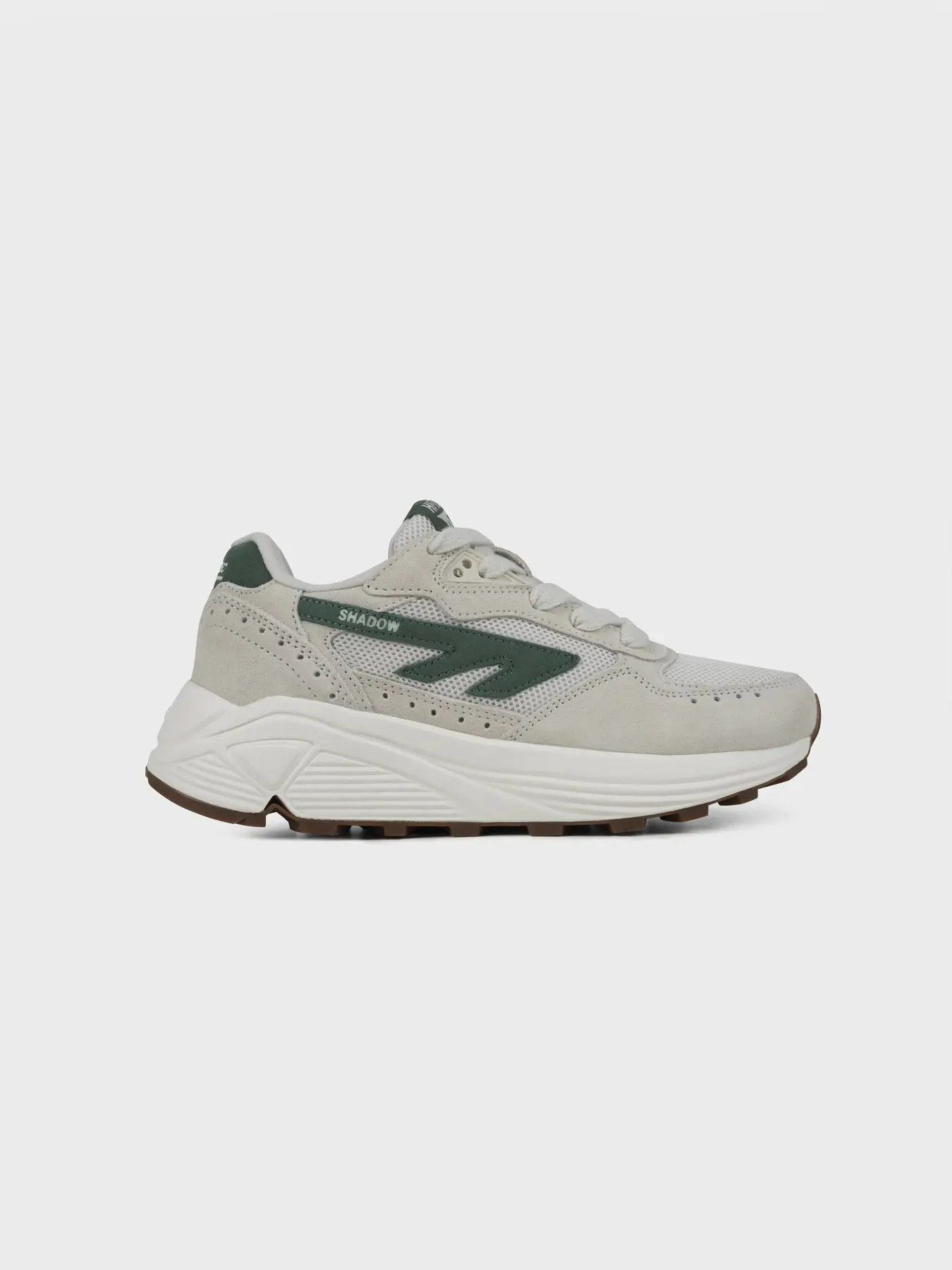
A drop shadow is soft, even and offset behind the product, and it looks the same on every image. It is the standard look for marketplace and catalog pages, where a grid of products has to match.
Reflection shadow
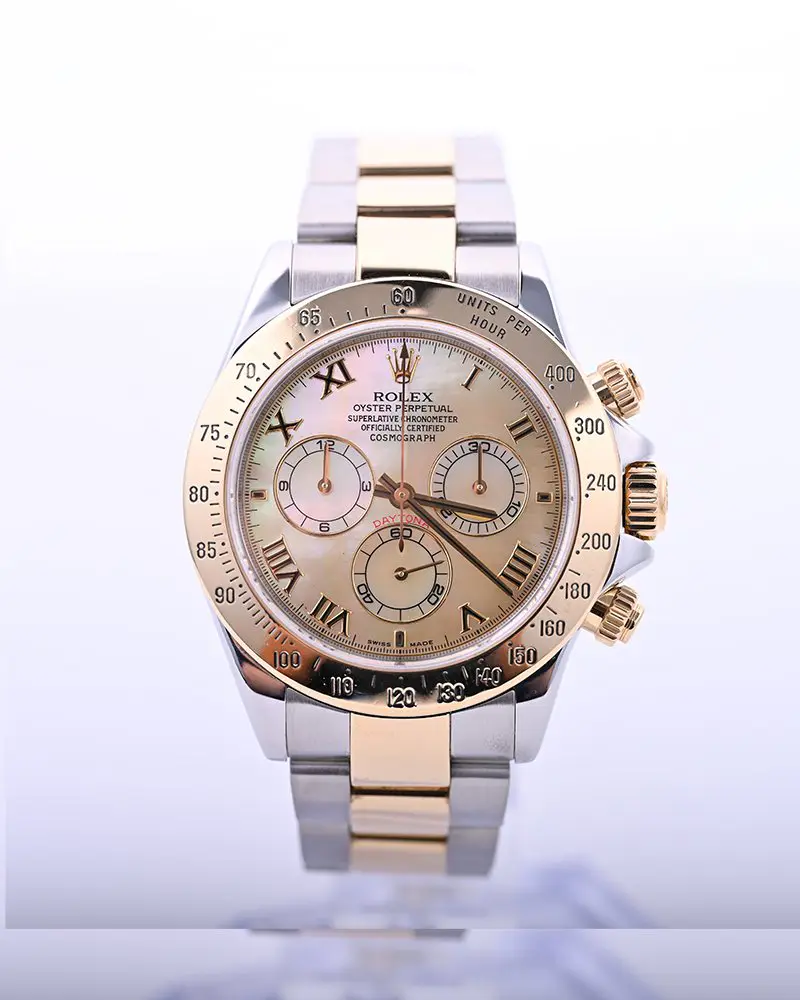
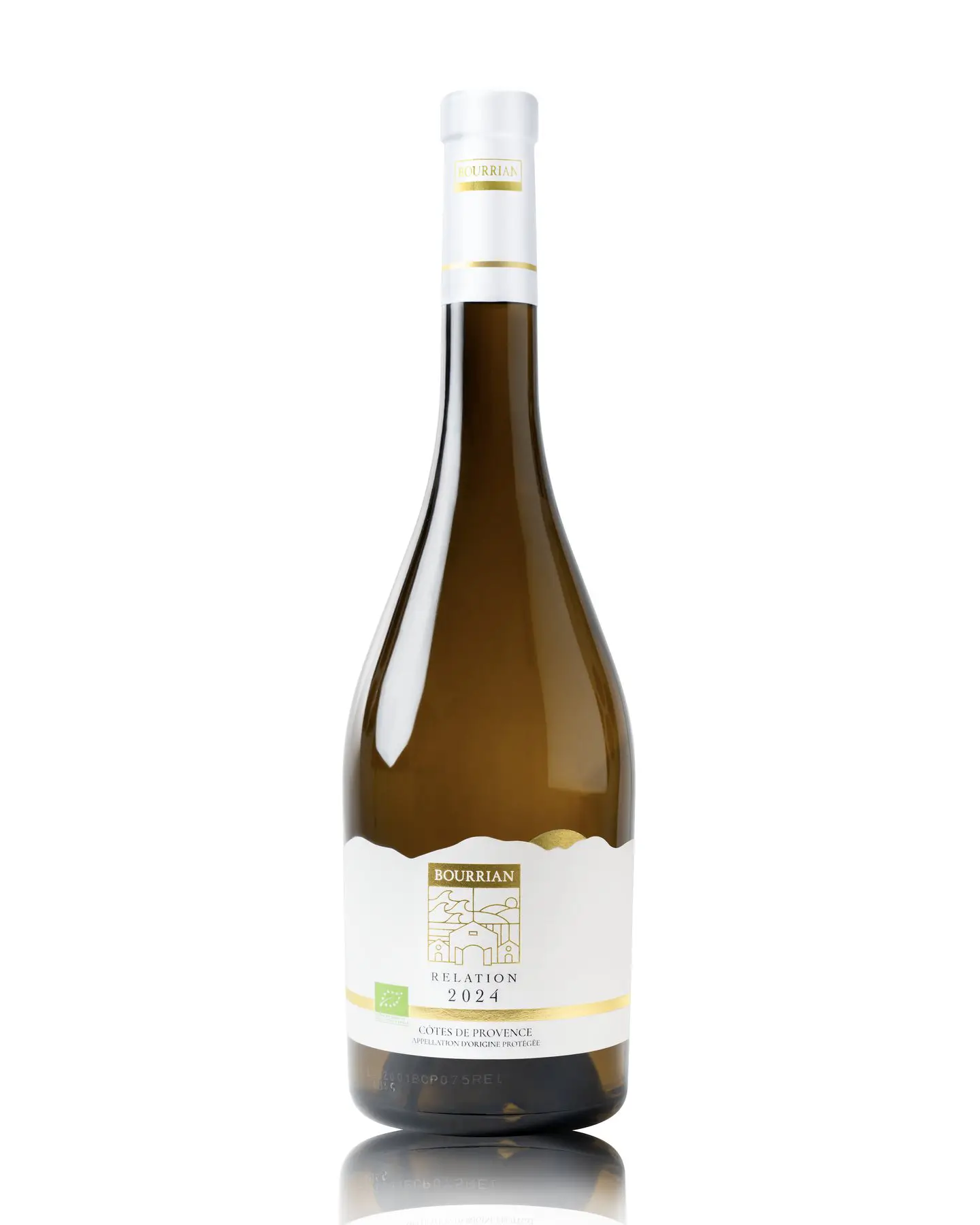
A reflection shadow mirrors the product on a glossy surface, and it suits watches, bottles, electronics and jewelry.
Natural shadow
A natural shadow is drawn from the outline of the product and the direction of the light, so it differs from one product to the next. It suits hero images and lifestyle pages.
Keeping the original shadow
When the photo already has a shadow that suits the new background, the shadow can be cleaned up when the background is cut out and then placed on the new background.
How to choose
- Choose a drop shadow for a catalog or marketplace grid where every image should match.
- Choose a reflection for products that sit on glossy surfaces, such as watches, bottles, electronics and jewelry.
- Choose a natural shadow for hero images and lifestyle pages.
- Keep the original shadow when the photo already has one that suits the new background.
What makes a shadow look right
- The direction agrees with the light in the photo.
- The shadow starts where the product touches the surface, so legs, feet and bases do not hover.
- The edge softens gradually and never ends in a hard line.
- Every image in an order has the same direction, strength and softness when you choose one style.
Adding a shadow to a cut-out you already have
A shadow can be added after the background is removed. Send the cut-out as a PNG or PSD and say which shadow style you want, and if the background is still in the photo, the background removal is part of the same order.
Shadows and transparent backgrounds
A shadow needs a surface to fall on, so a fully transparent file has nothing to cast it on. The shadow can be saved as soft transparency in a PNG, or on its own layer in a PSD, and you place it on your own background.
Files for finished shadows
- A JPG with the shadow on a white background, ready for listings and product pages
- A PNG with a soft shadow on a transparent background, to place on your own colors
- A PSD with the shadow on its own layer, so you can change its strength or direction
- A WebP, which is a smaller web file for faster pages
Check the marketplace rules first
Marketplaces set their own rules for product images, including the background, so read the rules of the marketplace before you add a shadow or a reflection to a listing image.
How SNS Forge handles this
We add drop, reflection and natural shadows, or we keep and clean the shadow from your photo, and we set the direction, softness and darkness to match the light in the photo. When you choose one style, every image in the order gets the same strength and softness. Send finished images that show the shadow you want to match, and we set the new shadows to the same direction, softness and darkness.